How to Mirror Your Phone to Your Tesla's Screen
This walks through the full setup from a clean start. It's quicker than it looks — most of this page is explaining why each step works, not a long list of things to do.
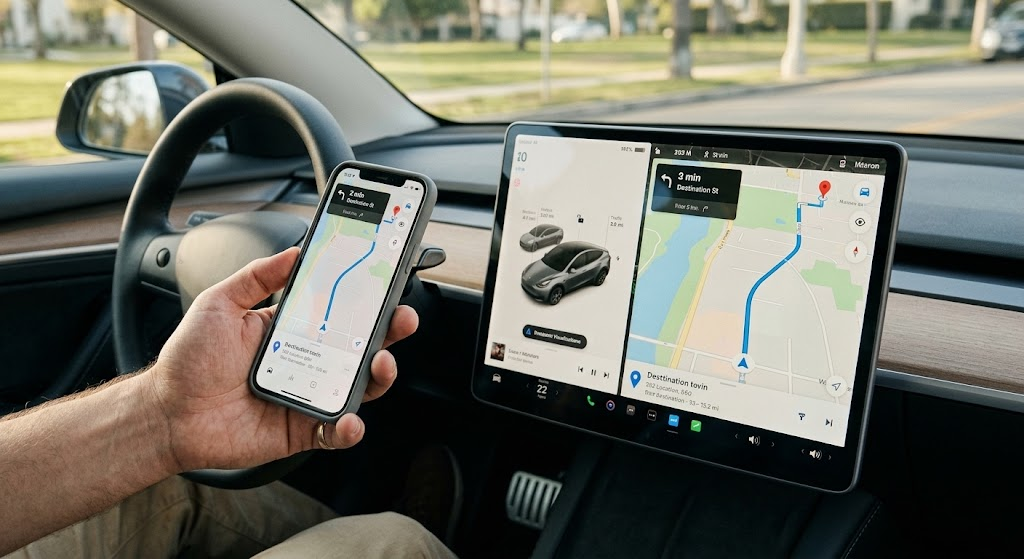
1. Start casting
Open MirrorCast and tap Start Casting. Android will ask what to share — choose Entire screen if you want to mirror other apps (YouTube, maps, photos), not just MirrorCast itself.
Unlike some screen-mirroring approaches, there's no hotspot to set up and no network-sharing permission to grant. Your phone just needs its own internet connection, the same as it already has.
2. Open the link on the Tesla's browser
MirrorCast will show a short link. Open the Tesla's browser and go to that link. Within a few seconds your phone's screen — and audio — should appear.
The short buffer before it starts is deliberate: it gives the stream a little headroom to ride out normal network hiccups smoothly, rather than stuttering every time there's a brief slowdown.
3. Sound
Audio streams right along with the picture and stays in sync with it — no separate Bluetooth pairing needed for sound. This works for any app on your phone, including a browser tab.
4. Pick a streaming quality
MirrorCast offers Low, Balanced, and High streaming quality. Balanced is a sensible default for most connections; drop to Low on a weak connection or older phone, or go to High (a Premium feature) for the sharpest picture. You can change this any time, even mid-cast.
A note on dropped connections
If your phone briefly loses signal — a tunnel, a dead zone, the screen locking — MirrorCast is built to pick back up on the same link once connectivity returns, rather than forcing you to reopen a new one while driving. Just leave the Tesla's browser tab open and it should reconnect on its own.